

Overview
Follow a property’s day: incoming bookings, the room calendar, the front desk and reports.
Watch the videoPMS for vacation rentals and hospitality. Follow bookings, rooms, guest arrivals and recorded payments with your team.

The recorded workflow brings Booking.com, Airbnb and direct guest conversations into the booking calendar. A sold night stops being available on the other channels.

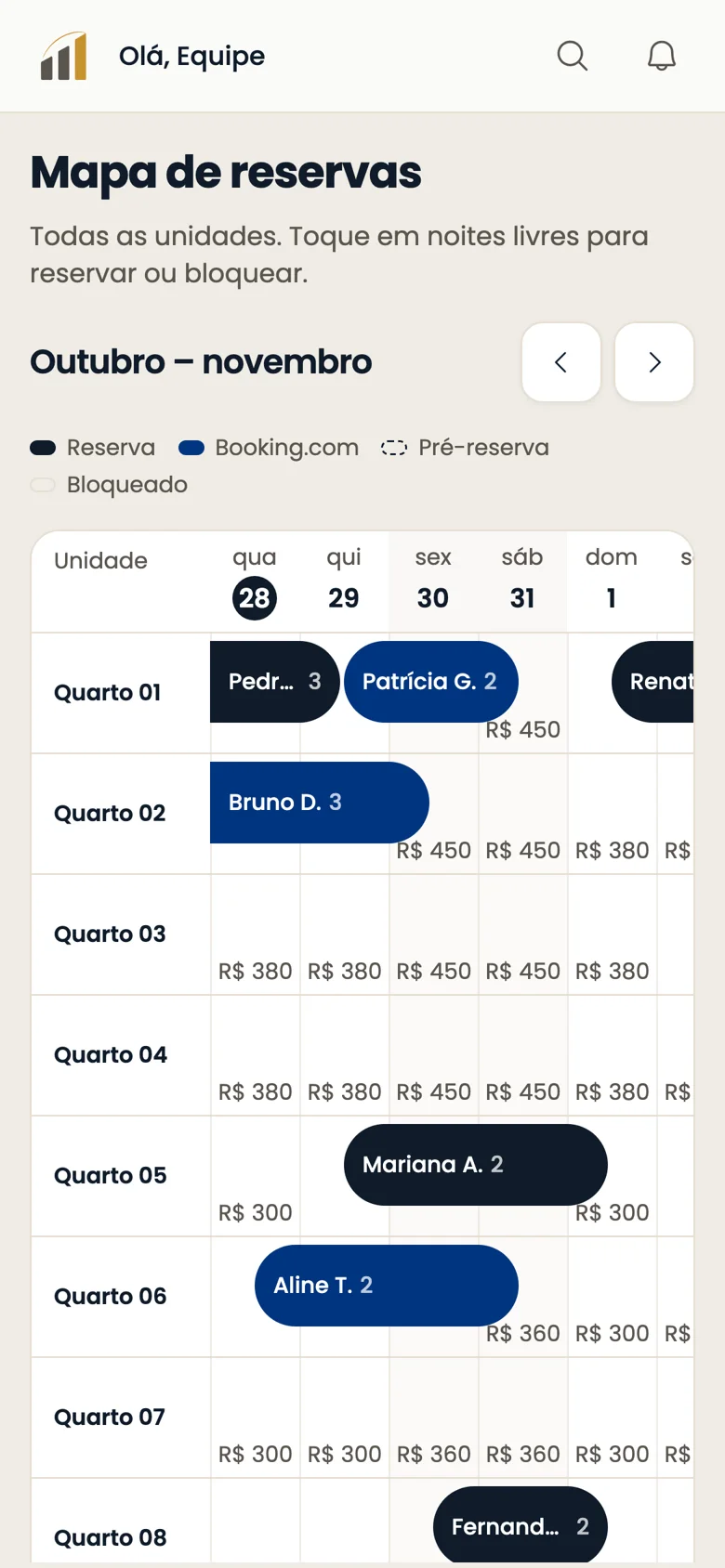
Review rooms, rates and booking sources. Open the details to check dates, category and the remaining amount to collect.
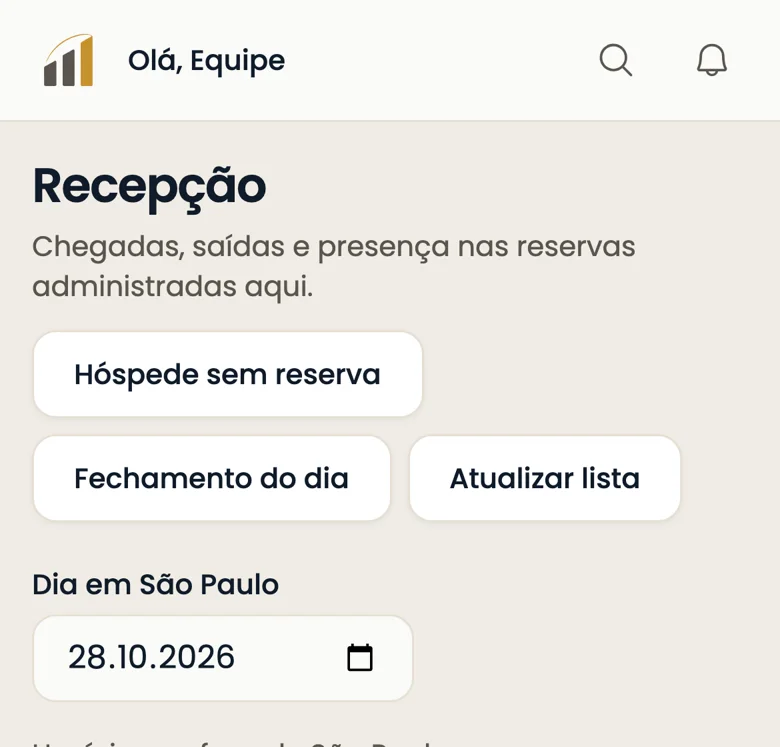
Check arrivals, departures, guests in house and overdue departures. Recording attendance does not confirm payment or documents.
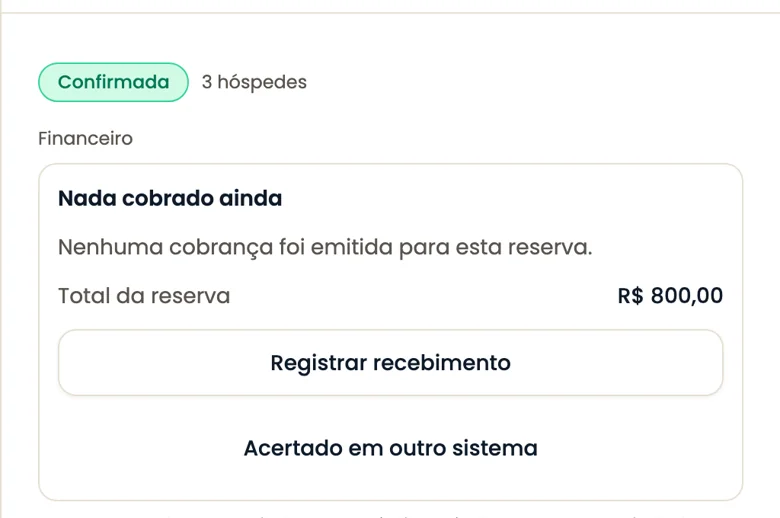
Check totals, receipts and the remaining balance. Your team confirms a provisional booking after recording payment.
The test walkthrough shows room mapping and checks before opening sales. Review synchronization and existing bookings with your team.

The team imports future bookings from an export or spreadsheet. Review opening balances before recording previous receipts.

Review occupancy, average daily rate and revenue by category, channel and month.

The demonstrated provisional booking holds a room while the guest pays. Your team confirms receipt; without confirmation, the dates are released.

Follow the guide to understand each part of your operation.
View the complete guideFollow a property’s day: incoming bookings, the room calendar, the front desk and reports.
Watch the video
Set up your account, invite the team and choose who can access each part of the operation.
Watch the video
Create room categories, choose the sales unit and organize the rooms shown on the calendar.
Watch the video
Set category rates, adjust dates and seasons, and review booking rules before opening sales.
Watch the video
Connect the property’s Booking.com account, map categories and rates, and reconcile bookings before opening sales.
Watch the video
Understand channel connections and what must be checked before sending rates and availability.
Watch the video
Bring future bookings from your previous system and distinguish opening balances from new receipts.
Watch the video
Read the room calendar, enter a direct booking, block dates and move a stay between rooms.
Watch the video
See how a Booking.com reservation reaches the calendar and how changes or cancellations update the stay.
Watch the video
Check today’s arrivals, departures and in-house guests, and record check-in or check-out.
Watch the video
Record a payment already received and confirm a provisional booking after checking the receipt.
Watch the video
Review a cancelled booking’s balance, retained amount and any refund that must be recorded.
Watch the video
Reconcile daily receipts and outgoings by payment method, then close or reopen the day.
Watch the video
Review the messages guests receive from booking through departure and adjust their settings.
Watch the video
Read occupancy, average daily rate, RevPAR and gross revenue for the selected period.
Watch the videoOn Booking.com itself. InnSync follows the change or cancellation.
Install InnSync from your browser and open it through its own icon and window. It is a web app, not a native store app.
Use on your phoneNo. On iPhone use Safari, Share and Add to Home Screen. On Android use the Chrome menu.
Use on your phoneYes, on supported devices. Install on the Home Screen, open the icon and allow notifications. iOS requires installation for web notifications.
Use on your phoneYes, after enabling and allowing them on the device, according to your preferences. On a computer, the tab can close but the browser must remain open.
Use on your phoneInstall from your browser and open the Home Screen icon. It is an installable web app, with no App Store or Google Play download.
Use on your phone
Install InnSync from your browser and configure notifications on your phone or computer.
Watch the videoLog in or create your account to get started.